

Contractor guide
Contractor workspace overview
Use the contractor dashboard as the starting point for claim work, missing files, estimator status, RFIs, seats, fees, and history.
Audience
Contractors only
On this page
What this page is for
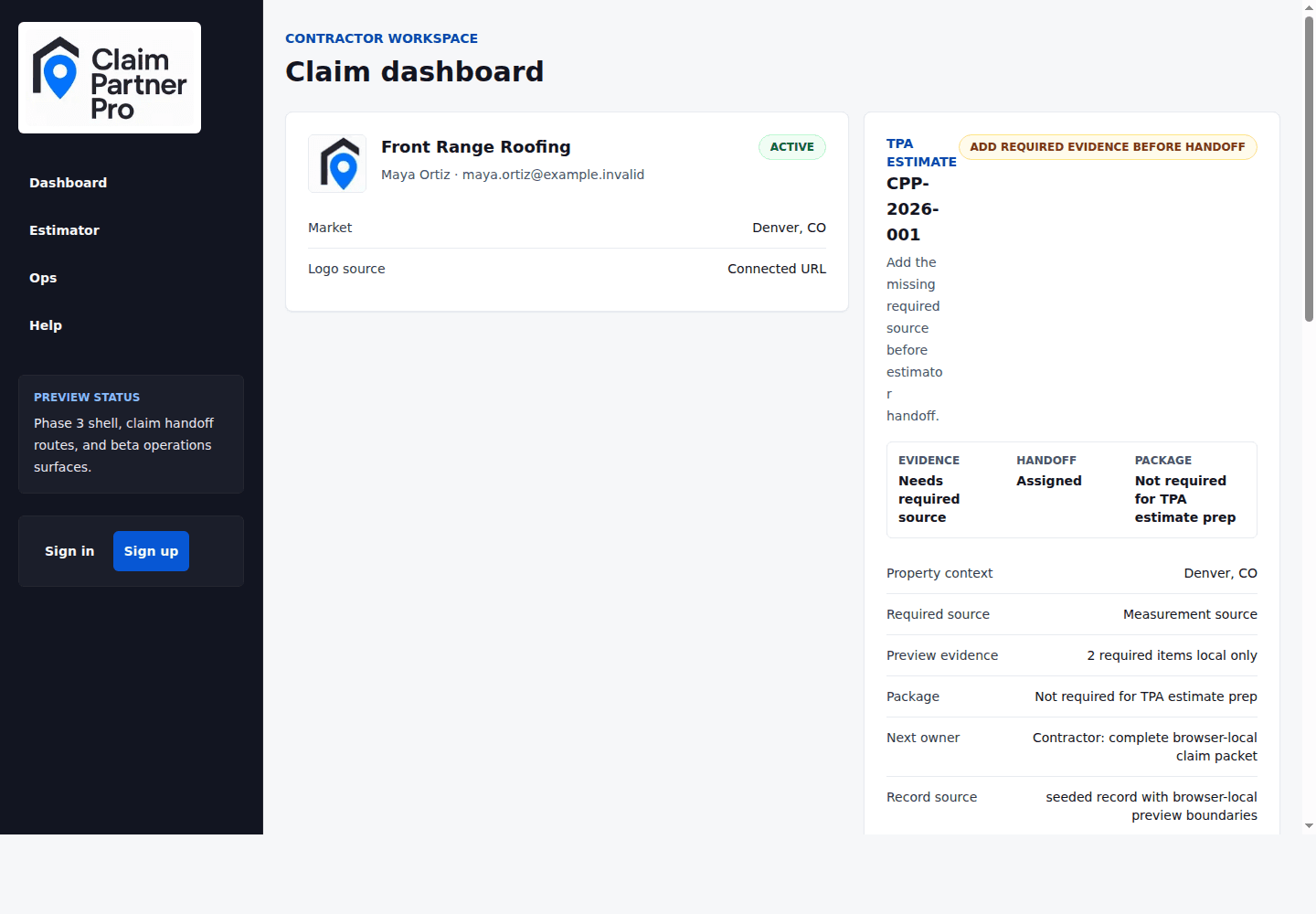
The contractor dashboard gives your team a single place to see the active claim, what Claim Partner Pro needs next, and which workflow should be opened first. The top claim cards summarize the current package state. The workflow tiles below them open the specific pages used to manage onboarding, claim packages, RFIs, estimator handoffs, status, activity, and fees.
Read the claim cards
Start with the claim status card. It tells you whether the current job is a TPA estimate or supplement, what the next action is, who owns that action, and whether evidence, handoff, and package readiness are complete.
- Evidence shows whether the files the estimator needs are in, or still holding up the work.
- Handoff shows whether an estimator has been matched and accepted the work.
- Package shows whether the estimate is still being written, being sent, or ready for your review.
Where to go next
Use the primary action button in the claim card when you are not sure what to do next. Use the workflow tiles when you already know the page you need.
Fast path
If a claim is blocked, the dashboard usually points to Build claim package, Answer RFIs, or Status and audit. Open that page before asking support for a status update.
Daily workflow
For active claim work, use the dashboard as a triage board at the start of the day and after any estimator response. Work from the most specific blocker first, then confirm the status page reflects the same next owner.
- If evidence is missing, open Build claim package and add the file that matches the checklist item.
- If an RFI is open, answer the exact question before changing unrelated claim notes.
- If the estimator handoff is pending, review the handoff page rather than editing claim evidence that is already marked ready.